This is part of our commercial offering.
You can group organization members into teams that reflect your company or group’s structure with cascading access permissions.
Teams provide:
- Scoped workspaces for projects and runs
- Team-based access control for projects
- Integration with organization policies for automatic settings
- Role-based permissions within teams
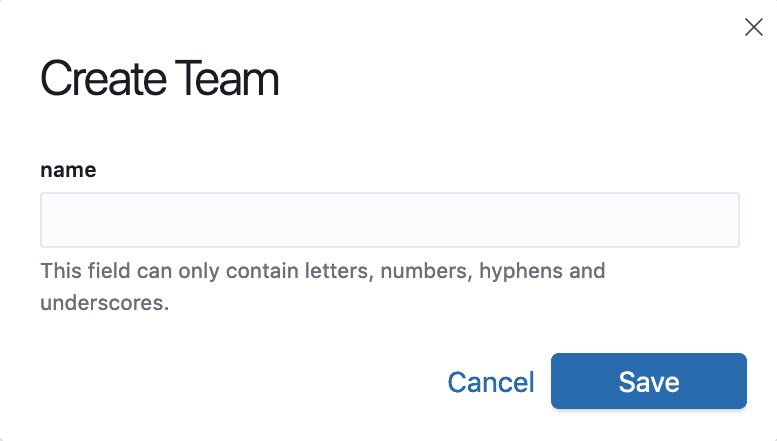
Create a team
You can create teams to manage scoped permissions to your projects.
Team members
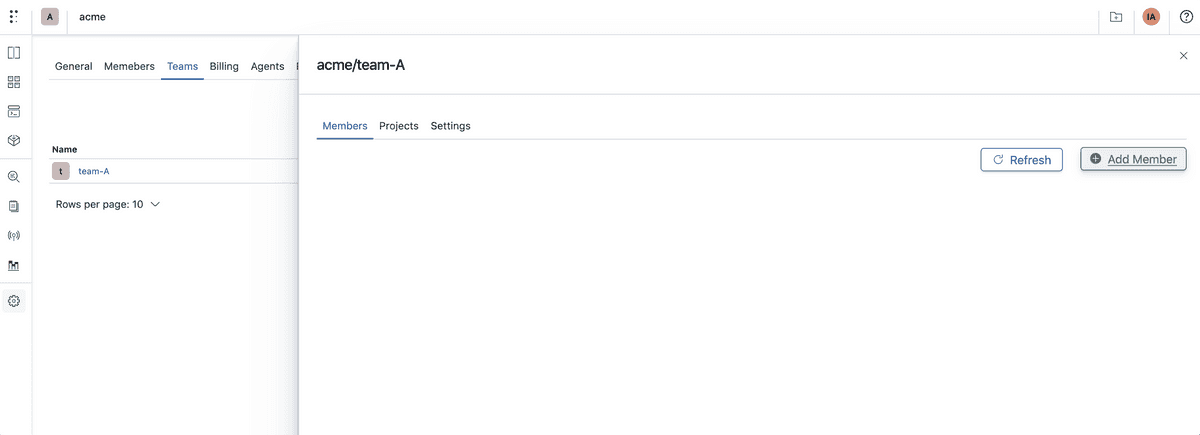
Add / Invite team members
You can add organization members to teams. Only users who are already members of the organization can be added to teams.
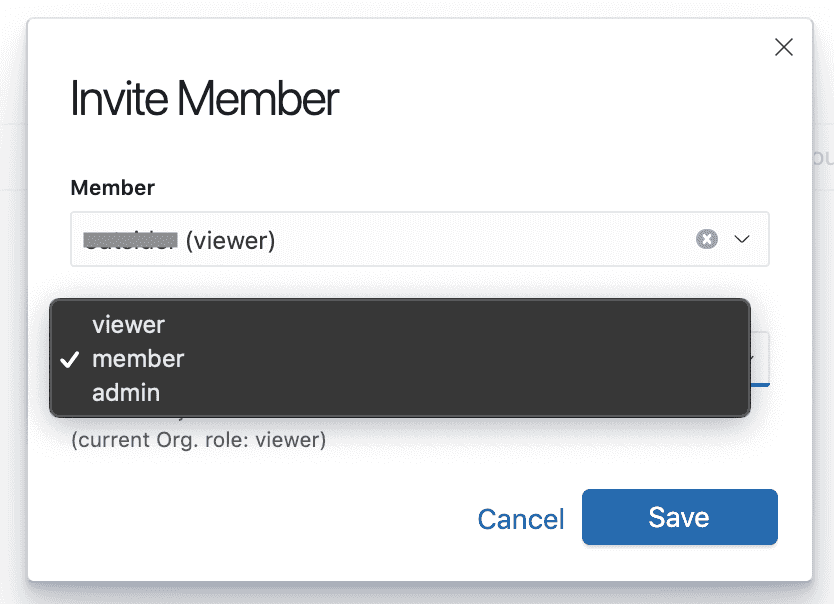
Adapt role to the team
You can invite members to a team and give them higher roles within the team.
e.g. A user can be an outsider of an organization and can be invited to a single project as an admin without having access to other projects.
Team roles
Team members can have one of the following roles:
- Viewer: Can view team resources but cannot make changes
- Member: Can view and interact with team resources
- Contributor: Can create and modify resources within the team
- Admin: Full administrative access to the team
Note that a member’s organization-level role is also displayed alongside their team role, as organization roles may provide additional permissions.
Team space
Teams have their own workspace that provides scoped access to resources. The team space allows members to:
- View and manage projects assigned to the team
- Access runs, artifacts, and resources scoped to the team
- Create projects that automatically inherit team policies
Accessing team space
You can access a team’s workspace through the teams routes:
- Team projects:
/ui/{org}/teams/{team}/projects - Team runs:
/ui/{org}/teams/{team}/runs - Team artifacts:
/ui/{org}/teams/{team}/artifacts
You can also use the workspace switcher in the search bar to switch between different team spaces.
Creating projects via team space
When you create a project through a team space, the project can automatically inherit the team’s linked organization policy settings. This ensures consistent configuration across all team projects.
Using CLI with team space
The CLI supports team space by using the organization/team format in the owner parameter. This allows you to scope operations to a specific team.
Set the team space globally:
You can configure the CLI to use a team space as your default context:
polyaxon config set --owner=my-org/engineeringThis sets the team space globally, so all subsequent commands will operate within that team context without needing to specify it each time.
Initialize a project under a team:
polyaxon init --project=my-org/engineering/my-projectRun operations in a team project:
polyaxon run -p my-org/engineering/my-project -f polyaxonfile.yamlList runs in a team project:
polyaxon ops ls -p my-org/engineering/my-projectUsing Python client with team space
The Python client supports team space through the owner parameter using the organization/team format.
Team-scoped project operations:
from polyaxon.client import ProjectClient

# Create a client for a team project
client = ProjectClient(owner="my-org/engineering", project="my-project")

# Create a new project under the team
client.create({"name": "new-project", "description": "Team project"})

# List runs in the team project
client.list_runs()
Team-scoped organization operations:
from polyaxon.client import OrganizationClient

# Create a team-scoped client
team_client = OrganizationClient(owner="my-org/engineering")

# List all runs within the team
team_client.list_runs()

# List model versions within the team
team_client.list_model_versions()

# Approve runs within the team
team_client.approve_runs(uuids=["uuid1", "uuid2"])
When using the OrganizationClient with a team-scoped owner, the following methods operate within the team context:
- Run operations:
list_runs,get_run,approve_runs,archive_runs,restore_runs,delete_runs,stop_runs,skip_runs,invalidate_runs,bookmark_runs,tag_runs,transfer_runs - Version operations:
list_versions,list_component_versions,list_model_versions,list_artifact_versions - Artifacts:
list_runs_artifacts_lineage
Organization policies
Teams can be linked to organization policies that define default settings and restrictions for projects.
Linking a policy to a team
In the team settings, you can assign an organization policy to the team. When a policy is linked:
- Projects created via the team space can inherit the policy settings
- Settings are automatically synchronized across team projects
- Changes to the policy can propagate to connected projects
Policy settings
Organization policies can define:
- Authorized teams: Which teams can access policy-governed projects
- Authorized projects: Specific projects under the policy
- Connections: Available connections for projects
- Agents: Authorized agents for running workloads
- Queues: Available queues and default queue
- Namespaces: Kubernetes namespaces for resource isolation
- Presets: Available and default presets
- Excluded runtimes: Runtime types that are not allowed
- Excluded features: Features that are disabled
- Archived deletion interval: Automatic cleanup settings
Project access
Teams can be assigned to projects, and projects can restrict access to specific teams.
Assigning teams to projects
From the project settings, you can specify which teams have access to the project. When teams are specified:
- Only members of the assigned teams can access the project
- Team roles are respected within the project context
- Projects without team restrictions remain accessible to all organization members
For more details on restricting team access from the project side, see Project Settings.
Team-based access control
When a project restricts access to specific teams:
- Organization members must be part of an assigned team to access the project
- The member’s effective permissions combine their organization role and team role
- Team admins have administrative access to team-assigned projects
Default team
Users can set a default team that provides their default workspace context.
Setting a default team
In your user settings, you can select a default team. When set:
- The team space becomes your default workspace
- Resources are filtered to show team-scoped content by default
- New projects can be associated with your default team
Team settings
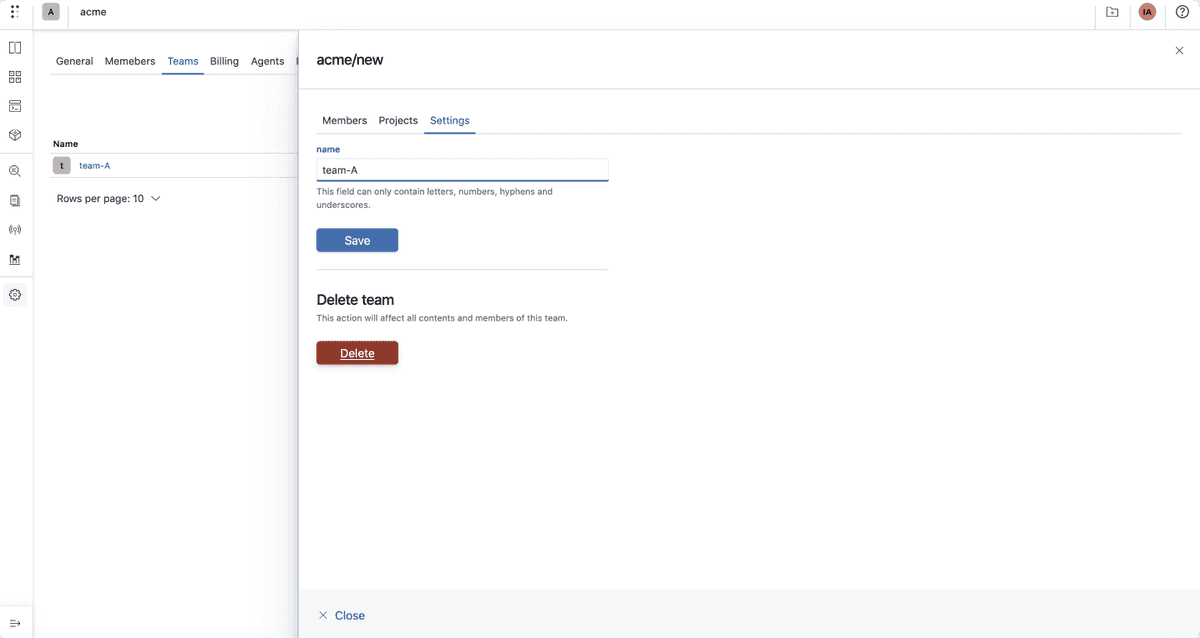
You can update or delete a team from the team settings page.
General settings
- Name: Update the team name
- Description: Add or modify team description
Policy assignment
Link an organization policy to the team to enable automatic settings synchronization for team projects.
Project assignments
View and manage which projects are assigned to the team.