Reconnect to your Polyaxon shell
Learn how ordinary ops shells differ from tmux sessions, then detach and reconnect to the same Polyaxon shell from the CLI or UI.
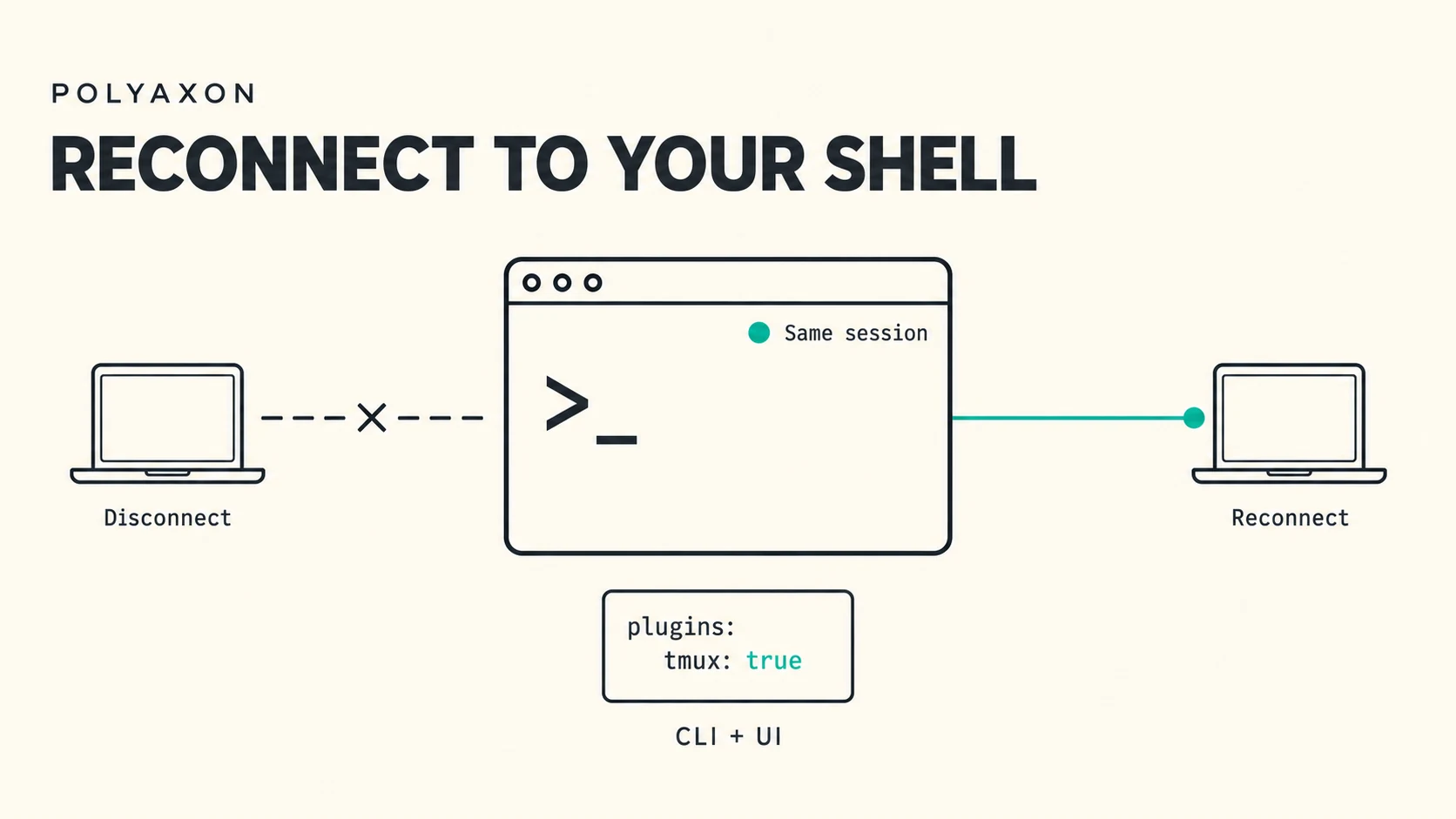
You open a shell in a running operation, change directories, export a few variables, and start working. With plugins.tmux, you can disconnect and return to that same shell. An ordinary polyaxon ops shell starts a new shell when you connect again.
Introduced in Polyaxon 2.16, the tmux plugin makes interactive sessions reconnectable from both the CLI and the UI. Keep an exploratory Python session open while switching computers, leave a command running while stepping away, or return to a debugging session with its working directory and variables intact.
This is part 1 of our remote development series. We start with ordinary operation shells and reconnectable tmux sessions. Parts 2 and 3 will cover native SSH access and interactive sandbox terminals. Here is where each option fits before we walk through tmux.
Choose how to connect
| Access method | What it uses | When to use it | What happens when you reconnect |
|---|---|---|---|
polyaxon ops shell without tmux | Kubernetes exec; no sandbox or SSH plugin required | Inspect a running operation or do a quick debugging task | A new shell starts; the command does not reattach to the previous shell |
polyaxon ops shell with plugins.tmux | Kubernetes exec attaching to a named tmux session | Keep shell variables, the working directory, and interactive programs across disconnects | The default command reattaches to the same live terminal session |
polyaxon ssh connect with plugins.ssh | Your local SSH client, connected through Polyaxon | Native terminals, remote IDEs, file transfer, and port forwarding | A plain SSH connection starts a new shell; attach to tmux explicitly to resume one |
polyaxon sandbox shell with plugins.sandbox | A pseudoterminal (PTY) managed by the sandbox daemon | Interactive shell access or terminal programs; use the SDK to manage PTYs from an application | The CLI creates a new PTY each time; the SDK can attach to an existing live PTY by ID |
A PTY gives a program terminal behavior, including interactive input and terminal resizing. tmux manages shell sessions independently of the client connection. SSH supplies a connection for native tools. The terminal guide covers these interfaces in more detail.
Enable a reconnectable workbench
Add tmux: true to your component's plugins section before starting the run. Polyaxon injects the tmux executable into the container, so you do not need to install it in your image.
Here is a complete component you can save as workbench.yaml:
version: 1.1
kind: component
name: reconnectable-workbench

plugins:
  tmux: true

run:
  kind: service
  container:
    image: python:3.11
    workingDir: /tmp
    command: ["sleep", "infinity"]
This service stays running while you work. Use a Polyaxon 2.16 or later deployment and CLI, with access to a project and a queue that can run services. The following commands use the quick-start project; replace it with your own project name.
Start the service from your local terminal:
polyaxon run -p quick-start -f workbench.yamlCopy the run UUID printed by the command, then set it locally:
export RUN_UUID=PASTE_RUN_UUID_HERERUN_UUID belongs to your local terminal. It is not automatically exported inside the remote shells. Run the connection commands below locally, and return to that local terminal between access methods. ops shell waits for the run to reach running.
Open an ordinary operation shell
On a run without plugins.tmux, the familiar command opens a shell through Kubernetes exec:
polyaxon ops shell -p quick-start -uid "$RUN_UUID"The default shell is /bin/bash. If your image only includes sh, use --command /bin/sh. This access method also works with running job containers; it does not require a sandbox-enabled service or an SSH daemon.
An ordinary shell is useful for checking files, inspecting the environment, or investigating a running workload. Each invocation starts a new shell process. A directory change or variable exported in the previous shell will not appear in the new one, although files written to the same running container remain accessible. Treat the shell as tied to its exec connection; it does not provide a session you can reattach to after a disconnect.
Our workbench already enables tmux. To try an ordinary shell on that same run, override the automatic tmux command explicitly:
polyaxon ops shell -p quick-start -uid "$RUN_UUID" --command /bin/bashType exit when you finish this temporary shell. An explicit --command replaces the default: even with plugins.tmux: true, --command python starts Python directly, outside tmux. To keep a Python REPL reconnectable, open the default tmux shell first and run Python inside it.
Open a reconnectable tmux shell
Now open the workbench shell without a command override:
polyaxon ops shell -p quick-start -uid "$RUN_UUID"When tmux is enabled, the default command is /opt/polyaxon/bin/tmux new-session -A -s terminal. It creates the session named terminal, or attaches to that session if it already exists. tmux keeps the shell and its programs running while your client is detached. Leave --command unset to use this automatic behavior.
Detach and return to the same session
Inside the remote shell, set a variable and change directories:
export EXPERIMENT_LABEL=baseline
mkdir -p /tmp/experiment
cd /tmp/experiment
Detach from the shell without ending it:
/opt/polyaxon/bin/tmux detach-clientYou return to your local terminal. Run the same attachment command again:
polyaxon ops shell -p quick-start -uid "$RUN_UUID"Now inspect the shell state:
printf '%s\n' "$EXPERIMENT_LABEL"
pwd
The expected values are baseline and /tmp/experiment. They belong to the existing remote shell: reconnecting has not created a new shell or copied variables from your local terminal.
You can also detach with the default tmux shortcut: press Ctrl+B, release both keys, then press lowercase d. On macOS, use Control (⌃). This shortcut also works while a command is running in the foreground, when you cannot type detach-client at a shell prompt. Programs inside tmux keep running while the client is detached. See the tmux getting-started guide for more session controls.
Use detach when you plan to return. Typing exit ends the shell; if that was the last pane, the tmux session ends too. The next connection creates a fresh session.
Pick up the session in the UI
Open the same run's Shell view in the Polyaxon UI. It detects the tmux plugin and selects the same create-or-attach command automatically. Leave that command unchanged to return to the terminal session.
You can detach from the CLI and reconnect through the UI, or reopen the browser shell after a connection drops. Both clients must target the same pod and container. For a run with multiple replicas, each container has its own session; the CLI provides --pod and --container options to select it explicitly.
Keep the service alive while you work
The tmux session survives client disconnects while the container and tmux process remain alive. Stopping the run, restarting the container, or replacing its pod ends that session. tmux does not restore process memory after the environment is replaced.
Store durable results in your configured outputs or persistent storage, and put reusable configuration in your Polyaxonfile. In particular, values in run.container.env are available to new processes, while variables exported only inside a shell belong to that shell and its children. Reattaching to tmux preserves that shell state; creating a separate shell does not copy it.
Detaching leaves the service running and consuming resources. When you finish, detach and stop the run from your local terminal:
polyaxon ops stop -p quick-start -uid "$RUN_UUID"Keep the shell you want to return to
Use an ordinary ops shell for quick inspection. For an ongoing debugging session or REPL, enable plugins.tmux, open the default shell, and detach when you plan to return. The same shell can then follow you between local terminals and the Polyaxon UI for the lifetime of the run.
The next parts will show how SSH connects your local tools and how sandbox terminals expose sessions through an API. You can already find those interfaces in the interactive access reference; see the operations CLI reference for the commands used here.