Connect your local tools to Polyaxon with SSH
Connect native terminals and IDEs to a Polyaxon service, forward application ports, and use tmux explicitly when you want to resume a shell.
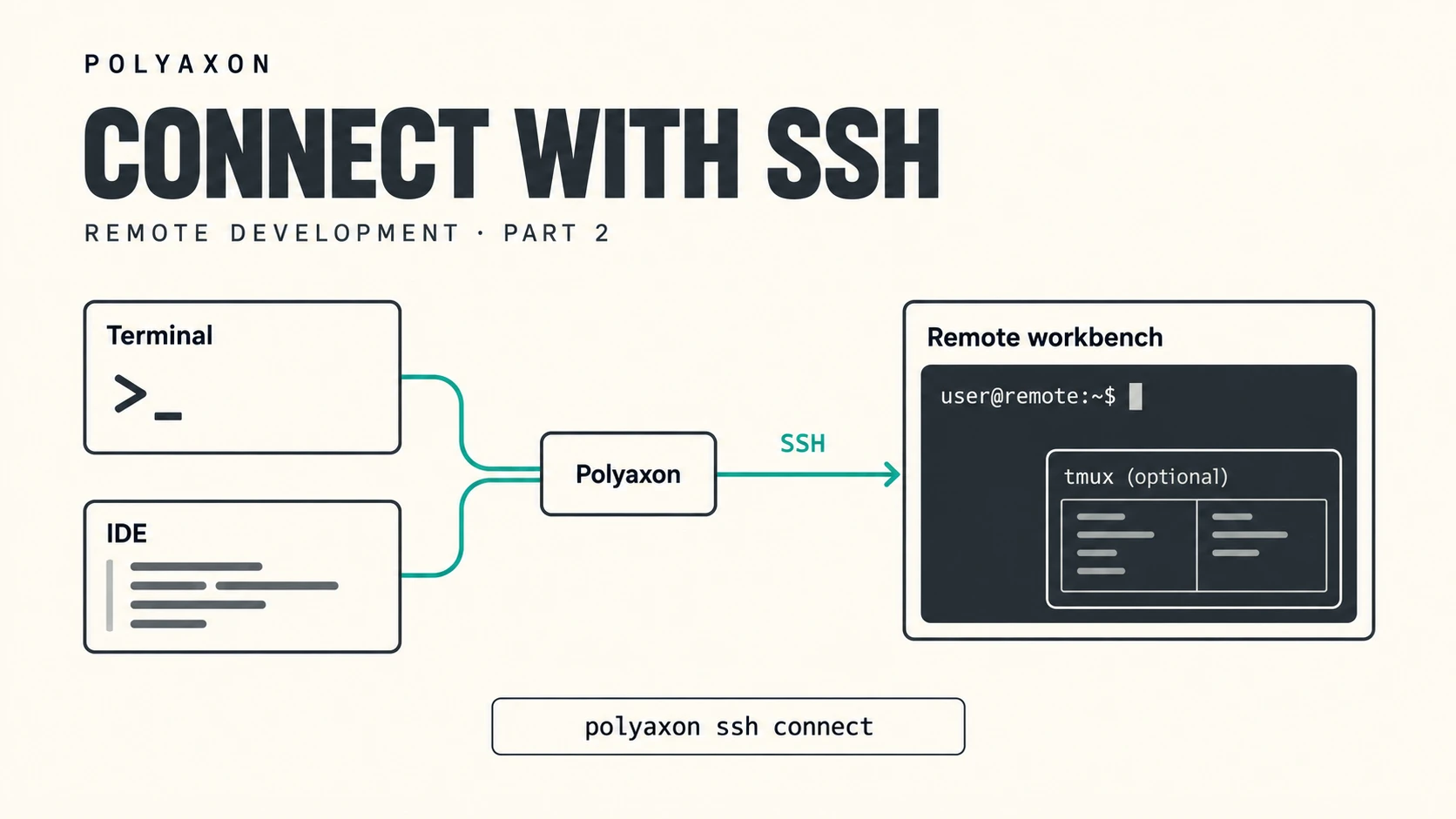
Your workbench is running in Polyaxon, but your editor, terminal, and file-transfer tools are on your laptop. With SSH access, those local tools can work against the running service using the SSH interfaces they already support.
This is part 2 of our remote development series. Part 1 explains ordinary operation shells and tmux reattachment. Here we connect native tools, explain how Polyaxon routes SSH, and combine SSH with tmux when the shell needs to survive a disconnect.
SSH access shipped in Polyaxon 2.16. It requires a local OpenSSH client and a deployment that supports SSH-enabled services. You can follow this article independently; the workbench below includes everything used here.
Start a workbench
Use a Polyaxon 2.16 or later deployment and CLI with access to a project and a queue that supports services. Your deployment or agent administrator must enable the required access capabilities. The examples use the quick-start project; replace it with your project name.
Build on part 1 by keeping tmux: true and adding ssh: true. Save this component as ssh-workbench.yaml:
name: ssh-workbench

plugins:
  tmux: true
  ssh: true

container:
  image: python:3.11
  workingDir: /tmp
  command: ["sleep", "infinity"]

service: {}
Start a new run from this updated component in your local terminal:
polyaxon run -p quick-start -f ssh-workbench.yamlCopy the run UUID printed by the command, and set it in your local terminal:
export RUN_UUID=PASTE_RUN_UUID_HEREWait for the run to reach running and SSH to be ready before connecting. RUN_UUID belongs to your local terminal; it is not automatically exported inside the remote shells.
This workbench keeps tmux for reconnectable sessions and adds SSH for native tools. SSH automatically starts the supporting runtime it needs, so an explicit sandbox: true is unnecessary here. Part 3 will add that declaration as we introduce the sandbox APIs.
You can also use an existing service that already enables both plugins by pointing RUN_UUID to that run. Starting a new service for this walkthrough consumes resources until you stop it.
Prepare SSH access and connect
Use SSH when your workflow relies on native SSH tooling: an IDE's remote development extension, a terminal, SFTP or SCP, or a local port forward. The plugins.ssh setting starts an SSH daemon in the service container. It complements the operation shell and sandbox APIs.
From your local terminal, prepare access to the workbench and connect:
polyaxon ssh setup -p quick-start -uid "$RUN_UUID"
polyaxon ssh connect -p quick-start -uid "$RUN_UUID"
Setup creates or reuses a local key pair, authorizes its public key for the run, and records the run's SSH host key in Polyaxon's managed known-hosts file. You can supply explicit identity and known-hosts files through the CLI options.
ssh connect invokes your local SSH client with a ProxyCommand that carries its connection through Polyaxon's authenticated SSH tunnel. You do not need to expose a separate public SSH port on the pod for this workflow. The local client still performs SSH authentication and host-key checking. See Connect with SSH for the access setup.
To execute a single remote command, pass it after -- from your local terminal:
polyaxon ssh connect -p quick-start -uid "$RUN_UUID" -- python -VThis prints the Python version from the workbench and closes the SSH connection when the command finishes. With no remote command, SSH opens an interactive shell; type exit to return to your local terminal when you finish.
Resume tmux from an SSH connection
A plain SSH login starts a separate shell. It does not automatically attach to terminal when plugins.tmux is enabled. To create or resume a tmux session, run this inside the SSH session:
/opt/polyaxon/bin/tmux new-session -A -s terminalDetach with Ctrl+B, release both keys, then press lowercase d. On macOS, use Control (⌃). At a shell prompt, you can also run /opt/polyaxon/bin/tmux detach-client. Detaching returns you to the outer SSH shell; type exit there to close the SSH connection. The default polyaxon ops shell and UI shell also use the session name terminal when tmux is enabled, so they can reach the same session. For a customized environment, cross-method attachment requires the same container, operating-system user, and tmux socket. A session with the same name under a different user is a different session.
You can also connect directly into tmux from your local terminal:
polyaxon ssh connect -p quick-start -uid "$RUN_UUID" -- -t -- \
  /opt/polyaxon/bin/tmux new-session -A -s terminal
The first -- passes options to SSH; -t requests a terminal. The second -- separates those SSH options from the remote command. SSH provides the connection, and tmux preserves the session when that connection ends.
Connect your local IDE and native tools
From your local terminal, print the run's host configuration for your SSH client or IDE:
polyaxon ssh config -p quick-start -uid "$RUN_UUID"Add the printed block once to your local ~/.ssh/config. Its ProxyCommand needs access to the Polyaxon CLI and your configured credentials. Then connect using the generated host alias:
ssh "polyaxon-$RUN_UUID"In an IDE with SSH remote development support, select that same polyaxon-<run-uuid> host and open the directory you want to work in, such as /tmp in this example. The host alias identifies this run; it does not select a new workbench when the run stops. The IDE must support the remote image's operating system and any helper tools it installs there.
The same alias works with tools that read SSH configuration, such as SFTP and SCP. rsync additionally needs its executable installed locally and in the container. Changes made through these tools affect the remote workbench's files; a new SSH shell still has its own process state.
Forward an application port
If you have started a notebook server or another application listening on port 8888 in the workbench, forward it to an available local port:
polyaxon ssh connect -p quick-start -uid "$RUN_UUID" -- \
  -L 127.0.0.1:8888:127.0.0.1:8888 -N
The first 127.0.0.1:8888 is the listening address on your laptop. The second is the application's address as seen from the remote container. While this connection stays open, your local port 8888 forwards to that remote application. If local port 8888 is already occupied, change only the first port, for example to 127.0.0.1:18888:127.0.0.1:8888.
-N creates the forward without opening a shell. This command does not start the application itself; keep its normal authentication enabled. Closing the SSH connection closes the forward. The SSH CLI reference documents passthrough options, and the OpenSSH manual explains the native forwarding syntax.
Close connections and stop the workbench
Exit a plain SSH shell when finished. If you plan to return to tmux, detach from it before closing the outer SSH shell. Use Ctrl+C in the local terminal running a port forward to close that forward.
Closing these connections leaves the service running. Stop a workbench you no longer need from your local terminal:
polyaxon ops stop -p quick-start -uid "$RUN_UUID"Stopping the run or replacing its container ends the SSH endpoint and any tmux session. Save durable results in your configured outputs or persistent storage before cleanup.
Bring your tools, preserve the right state
Use SSH to connect the tools you already work with. Use tmux inside that connection when you also need to keep a shell or interactive program available across disconnects. Keeping those two responsibilities explicit makes it easier to switch between your IDE, a terminal, and Polyaxon's other access methods.
In part 3, we will keep tmux and SSH and add sandbox: true to the workbench configuration. That installment will cover sandbox terminals, their PTY lifecycle, and application-managed reattachment. The sandbox terminal guide documents those interfaces today.