Upload multiple files and folders with Polyaxon CLI
Upload code, configuration, and small datasets in one Polyaxon CLI command, then save the same path mappings in a declarative mount section.
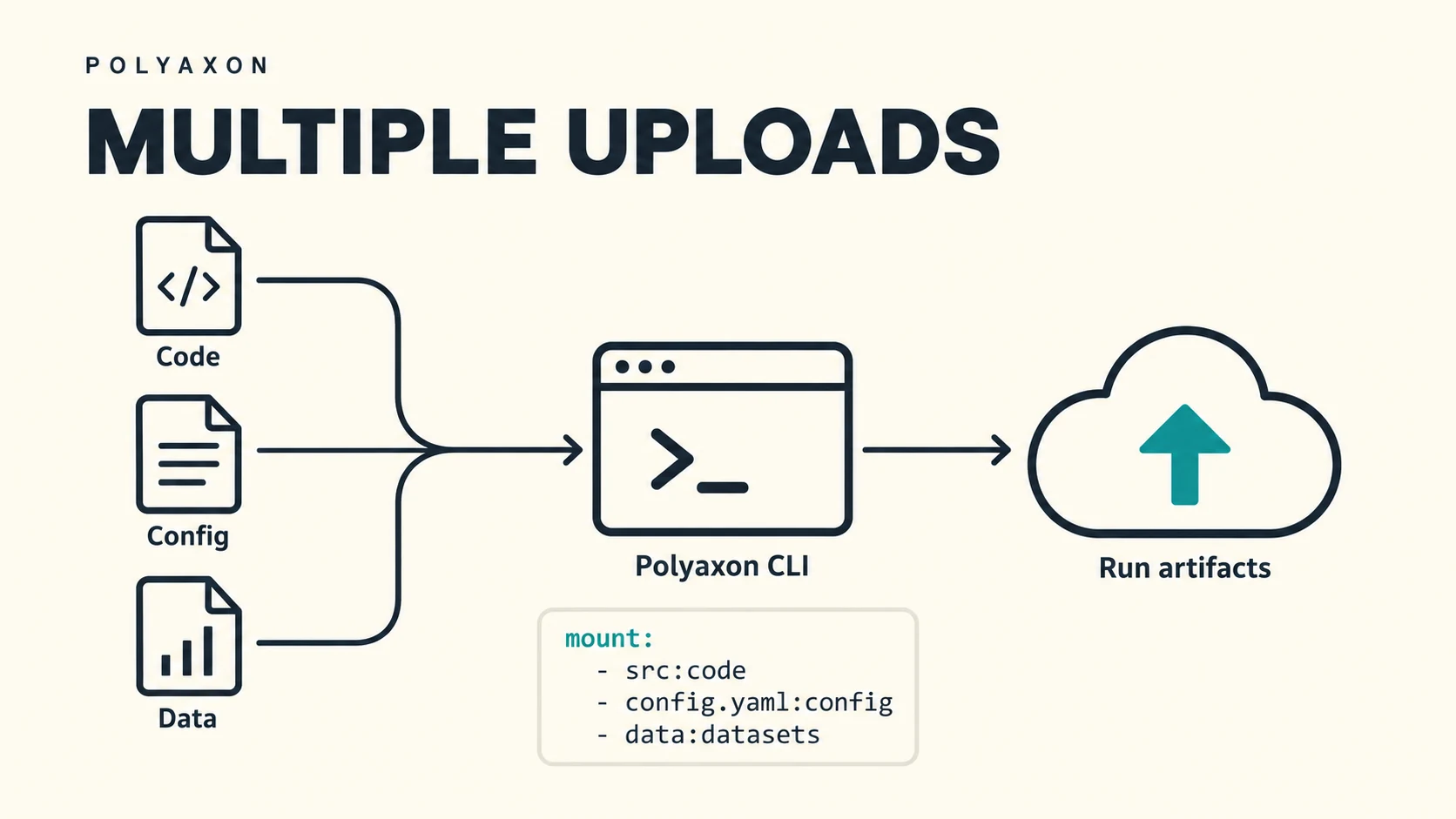
Most users upload local code with Polyaxon CLI's -u/--upload flag. It packages the current working directory, respects your ignore patterns, and uploads the files to the run's artifacts store under uploads before the run is scheduled.
Until recently, using the -u flag was the only option to upload code and config files required for users' operations,
and uploading multiple files and directories from separate locations has been a frequent request.
This feature was introduced in Polyaxon 2.13. User can repeat -m/--mount to give each upload its own source and destination, or save the same mappings in your Polyaxonfile's mount section so the next submission needs only polyaxon run -f polyaxonfile.yaml.
Bring an evaluation script together with its prompt configuration and a small regression dataset. Upload a training directory alongside a configuration file stored elsewhere in your project. Or send a notebook and its supporting utilities to an interactive session without uploading the entire repository.
Upload several paths in one command
Suppose your project contains code, an evaluation configuration, and a small dataset:
project/
├── polyaxonfile.yaml
├── src/
│   └── evaluate.py
├── configs/
│   └── eval.yaml
└── data/
    └── examples.jsonl
Repeat -m, or its long form --mount, for each local path. Each source:destination pair controls one upload:
polyaxon run -f polyaxonfile.yaml \
  -m "src:code" \
  -m "configs/eval.yaml:config" \
  -m "data/examples.jsonl:datasets"
These paths can come from different directories; they do not need to share a staging folder. Run the command from project/, with these files present. Relative source paths are resolved from the CLI's current working directory.
Destinations are directories relative to the run's artifacts root. A directory upload places its contents there; a file upload keeps its filename:
| Local input | Uploaded path, relative to the run's artifacts root |
|---|---|
src/evaluate.py, as part of the src directory | code/evaluate.py |
configs/eval.yaml | config/eval.yaml |
data/examples.jsonl | datasets/examples.jsonl |
For a file, use configs/eval.yaml:config, where config is the destination directory. The destination does not rename the file.
The long form is equivalent:
polyaxon run -f polyaxonfile.yaml \
  --mount "src:code" \
  --mount "configs/eval.yaml:config" \
  --mount "data/examples.jsonl:datasets"
You do not need to add -u: the mount entries trigger the uploads before the run is scheduled. The existing -u/--upload flag remains useful when you want to upload the current working directory to the default uploads destination. The older -u-from/--upload-from and -u-to/--upload-to options select one source and destination; repeated -m entries let you define several mappings.
Save the same uploads in your Polyaxonfile
Move the three mappings into a top-level mount list. Save this complete component as polyaxonfile.yaml. It uploads the directory and two files, then lists the destinations so you can inspect the resulting layout:
version: 1.1
kind: component
name: inspect-multiple-uploads

mount:
  - "src:code"
  - "configs/eval.yaml:config"
  - "data/examples.jsonl:datasets"

run:
  kind: job
  container:
    image: python:3.11
    workingDir: "{{ globals.run_artifacts_path }}"
    command: ["ls", "-R"]
    args: ["code", "config", "datasets"]
Submit it to your configured Polyaxon project:
polyaxon run -f polyaxonfile.yamlFor the earlier CLI-only examples, use this same component with the mount section omitted. Both approaches upload the same local paths to the same destinations.
Replace the listing command with your workload's entry point when you are ready to use the uploaded files. For example, the script is available at {{ globals.run_artifacts_path }}/code/evaluate.py.
The mount field is available on both components and operations. Keeping the upload list with the workload makes it reviewable in version control and reusable by teammates who have the same local project layout.
Object syntax
Each shorthand string can also be written as an object with from and to fields. Replace the mount section above with:
mount:
  - from: src
    to: code
  - from: configs/eval.yaml
    to: config
  - from: data/examples.jsonl
    to: datasets
YAML's inline object notation expresses the same mappings:
mount:
  - {from: src, to: code}
  - {from: configs/eval.yaml, to: config}
  - {from: data/examples.jsonl, to: datasets}
The schema also accepts the field names path_from and path_to in place of from and to:
mount:
  - path_from: src
    path_to: code
  - path_from: configs/eval.yaml
    path_to: config
  - path_from: data/examples.jsonl
    path_to: datasets
Mixed and inline lists
Strings and objects can coexist in the same list:
mount:
  - "src:code"
  - from: configs/eval.yaml
    to: config
  - {from: data/examples.jsonl, to: datasets}
For a compact declaration, the entire list can be written inline:
mount: ["src:code", "configs/eval.yaml:config", "data/examples.jsonl:datasets"]Choose the form your team finds easiest to read; these declarations express the same upload mappings. Keep mount as a list even when it contains only one entry.
Shorthand paths and their defaults
You can omit either side of a mapping. An omitted or empty source uses the CLI's current working directory. An omitted or empty destination uses the run's artifacts root. This destination default differs from -u, which uses uploads.
Object fields set to null use the same defaults. An empty list, mount: [], declares no uploads.
The following rows are alternatives. Each string can be passed to -m or used as a mount list entry; the object form belongs in the YAML list:
| String entry | Equivalent object entry | Result |
|---|---|---|
"src:code" | {from: src, to: code} | Upload the contents of src under code. |
"src" or "src:" | {from: src} | Upload the contents of src to the run's artifacts root. |
"configs/eval.yaml" | {from: configs/eval.yaml} | Upload eval.yaml to the run's artifacts root. |
":snapshot" | {to: snapshot} | Upload the current directory's contents under snapshot. |
"src:/" | {from: src, to: "/"} | Explicitly upload the contents of src to the run's artifacts root. |
":" | {} | Upload the current directory's contents to the run's artifacts root. |
For example, these two declarations are equivalent ways to upload the current directory under snapshot:
mount:
- ":snapshot"mount:
- to: snapshotUse separate destination directories for independent inputs, as in code, config, and datasets above. A directory upload replaces the contents at its destination, so overlapping directory destinations can replace earlier uploads. Explicit destinations also make the layout clear to anyone reading the command or Polyaxonfile.
Add a one-off upload to a saved configuration
CLI mount flags are added to the entries declared in your Polyaxonfile. If you have a local debug/notes.txt file to attach to the next run, keep the three regular inputs in YAML and add:
polyaxon run -f polyaxonfile.yaml -m "debug/notes.txt:notes"That submission includes the declared code, configuration, and dataset, plus notes/notes.txt.
Use uploads for local iteration
Mount entries tell the CLI which local files to upload when submitting the run. They capture the files at submission time; subsequent local edits are picked up when you submit again. The uploaded files are associated with the run and can be inspected in its artifacts view.
Directory uploads follow Polyaxon's ignore patterns. Use a .polyaxonignore file to exclude local caches, virtual environments, or other files that the run does not need. For large datasets, use a configured storage connection and keep CLI uploads focused on code, configuration, and small inputs.
Start with -m while choosing the paths for an experiment, then move those mappings into mount once you want to reuse them. See the run command reference, mount specification, and artifact upload guide for the related options.