Work inside a team from Python and the CLI
Scope Polyaxon Python clients and CLI commands to a team, review runs across its projects, and keep explicit project targets and saved defaults clear.
A vision team keeps model training in one Polyaxon project and evaluation in another. Its morning review needs failed runs from both. A notebook, a reporting script, and a terminal session should all be able to name that team explicitly.
Polyaxon supports the same organization/team owner format in Python clients and CLI configuration. Use OrganizationClient(owner="acme/vision") for supported operations across the team's projects, or add a project name when working on one project. This makes the intended workspace visible in the code or command you share.
Team workspaces and access controls already provide the organizational structure. Polyaxon 2.12 introduced OrganizationClient and its team scoping, bringing that context into programmatic workflows.
Choose the scope of the task
The examples use an organization called acme, a team called vision, and two existing projects assigned to that team: image-training and image-evaluation. Replace these names with your own.
Teams are part of Polyaxon's commercial offering. You need a deployment with team support, a compatible Python client and CLI, configured authentication, and permission to access the example team's resources. The snippets assume this setup is already complete.
The owner identifies the workspace; the project narrows the task:
| Task | Target |
|---|---|
| Review runs across the vision team's projects | OrganizationClient(owner="acme/vision") |
| Review runs in its training project | ProjectClient(owner="acme/vision", project="image-training") |
| Address that project from the CLI | --project=acme/vision/image-training |
| Save a default team owner | polyaxon config set --owner=acme/vision |
A team-wide report is useful when a question spans several projects. A project client or explicit project path is useful when the next action concerns one of them.
Select a team space in the UI
The workspace selector lets you move between the organization-wide space and individual team spaces. These screenshots show the acme organization and a switch to its language team.
1. Start in the organization space
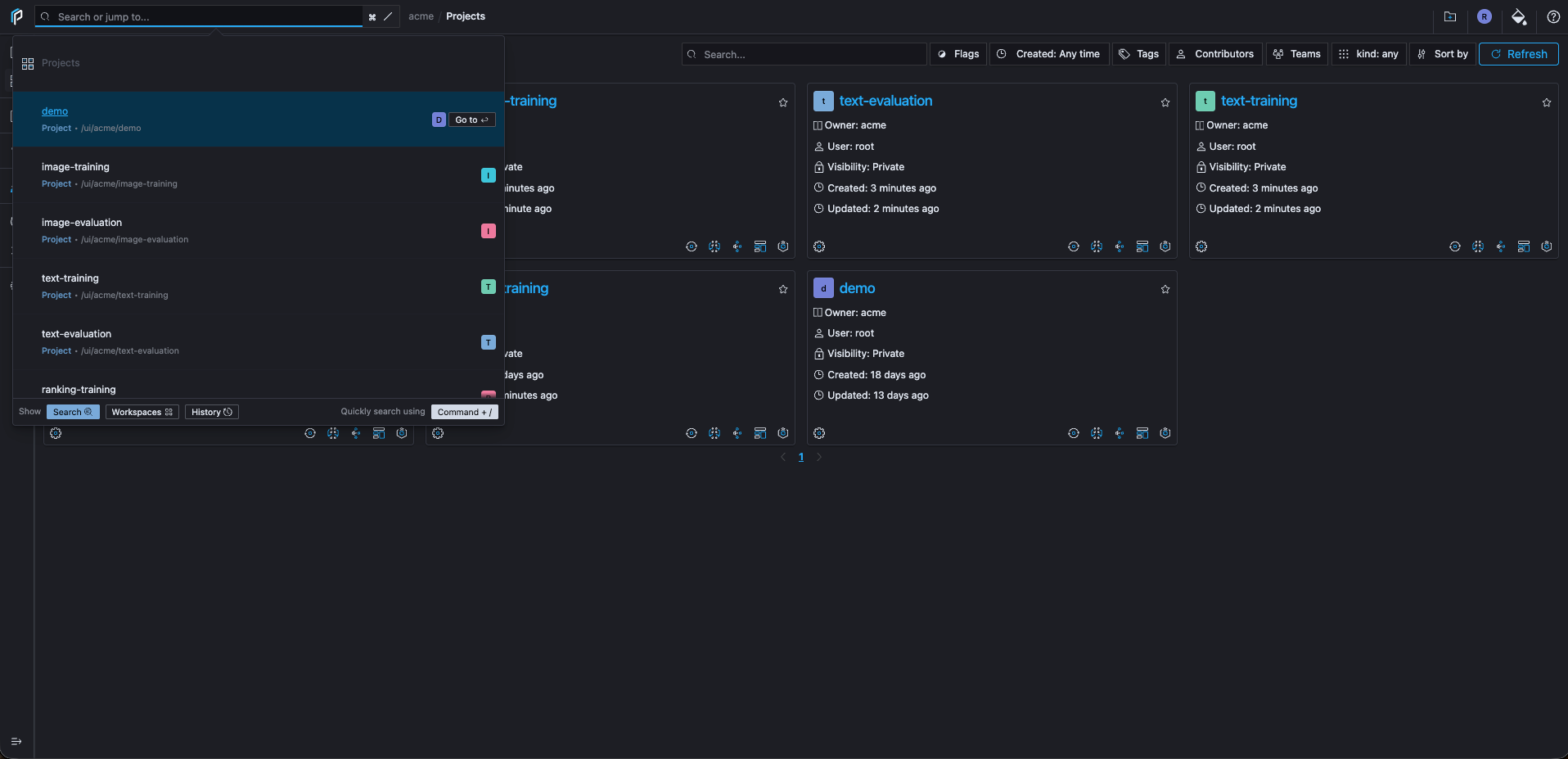
In the acme organization space, the Projects page and project search span the organization. The example includes image, text, and ranking projects, alongside demo. The organization-wide view still respects your access permissions.
2. Choose a workspace
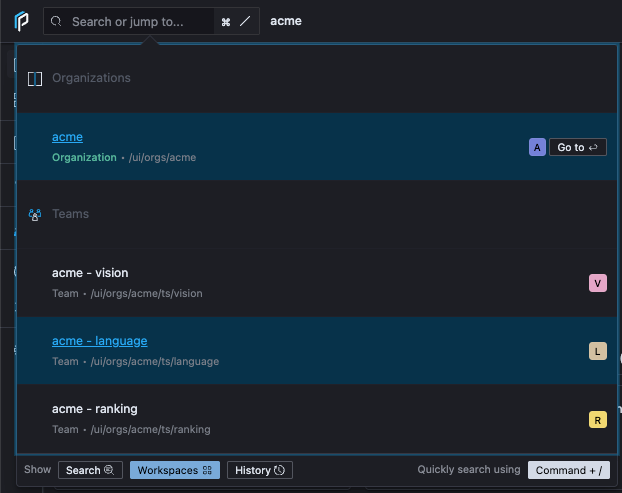
Open Search or jump to… in the top bar, then select Workspaces at the bottom of the menu. Choose acme - language to enter that team space. The same menu lists acme - vision and acme - ranking, while acme under Organizations returns you to the organization-wide space.
3. Browse the team's projects
After the switch, the top bar shows acme - language. Project search now lists text-training and text-evaluation, the projects available in that team space. The image and ranking projects from the organization-wide view are outside this selected scope.
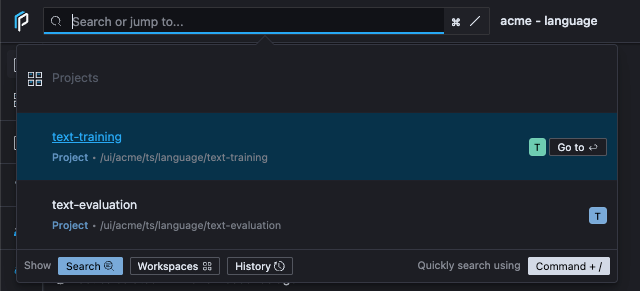
The corresponding Python or CLI owner is acme/language. The examples below use acme/vision to work with the image projects. Configure that context explicitly in each interface; changing the browser workspace does not set your local CLI configuration.
Share compute across teams, or keep it separate
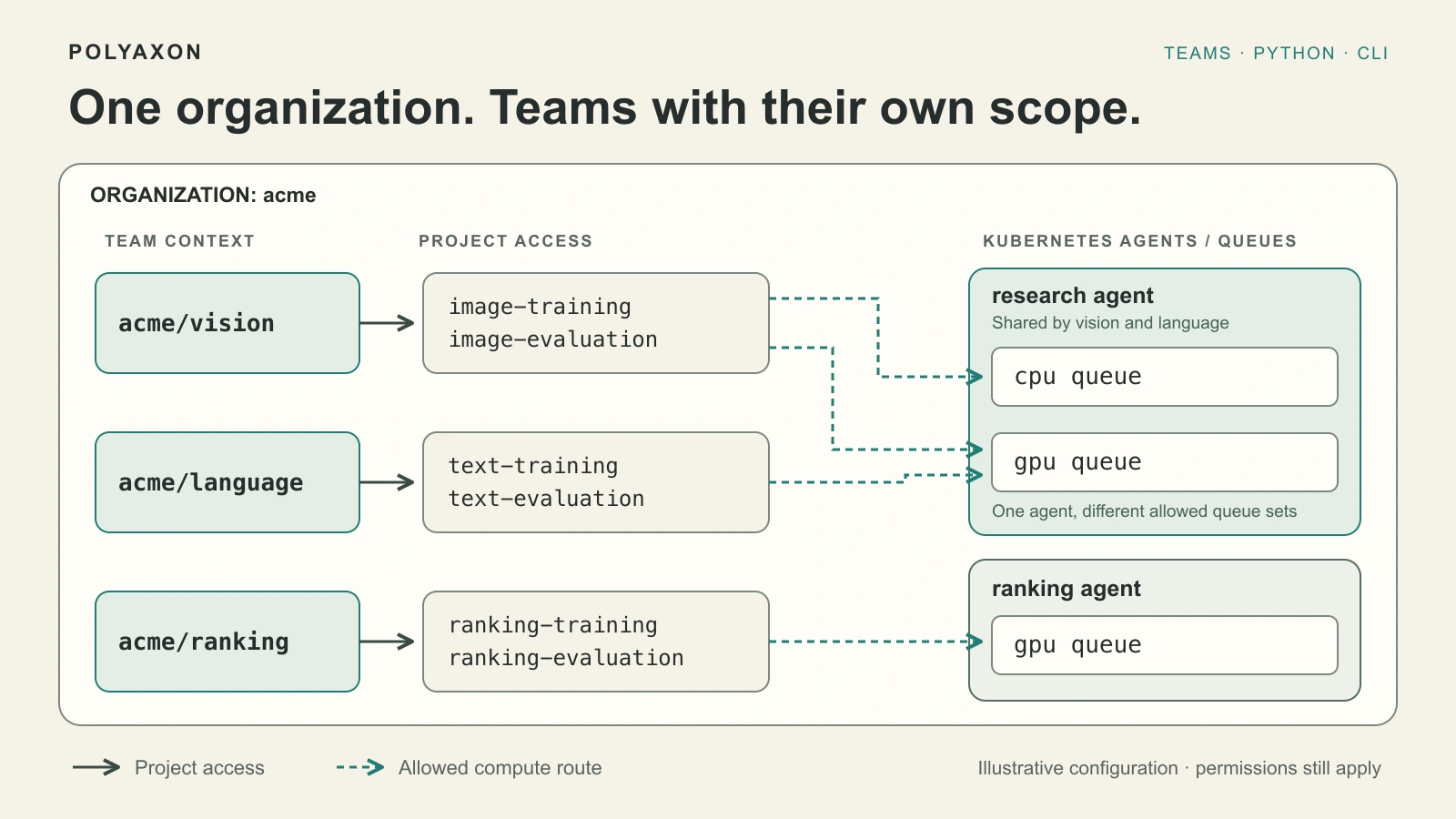
The same organization can contain several teams, each with access to different projects. Their compute options can overlap even when their project access does not. For example, administrators could configure this arrangement:
| Team | Projects it can access | Allowed agent and queues for those projects |
|---|---|---|
acme/vision | image-training, image-evaluation | research agent: cpu and gpu queues |
acme/language | text-training, text-evaluation | research agent: the same gpu queue |
acme/ranking | ranking-training, ranking-evaluation | Separate ranking agent: its own gpu queue |
Here, vision and language workloads share an agent and a queue, while vision has an additional queue available. Ranking workloads use a different agent. Queue names belong to their agents: the two queues named gpu in this example are distinct queues.
An agent manages a Kubernetes namespace or cluster and can manage multiple queues. Separate agents can target different namespaces on the same cluster or different clusters. Teams therefore do not require a one-to-one mapping to Kubernetes clusters.
Configure which teams can access a project and which agents and queues that project may use in project settings. Linked organization policies can also carry these settings across projects. The table assumes those restrictions have been configured; creating teams alone does not establish them. A project can also grant access to multiple teams when collaboration calls for shared work.
Sharing a compute queue does not itself grant access to another team's projects. Likewise, choosing owner="acme/vision" selects a workspace, not an execution queue. Workloads select an allowed queue explicitly or use the project's default. Queue priority, concurrency, and quota settings govern scheduling within the configured compute setup.
Review failed runs across the team
Use a team-scoped organization client to request the most recently updated failed runs:
from polyaxon.client import OrganizationClient

team = OrganizationClient(owner="acme/vision")
page = team.list_runs(
    query="status:failed",
    sort="-updated_at",
    limit=20,
    offset=0,
)

for run in page.results or []:
    print(run.uuid, run.name)
The team scope selects the projects the request covers. The query selects failed runs within that scope, and the sort puts the most recently updated results first. This requests one page of at most 20 runs, so an empty result is valid and a full page is not a complete inventory. For a larger report, paginate with limit and offset as described in the organization client reference.
You do not need to list projects yourself and merge a separate response from each one. For list_runs, the client routes an owner containing a team to the team runs API. An owner containing only acme uses the organization runs API instead.
The same team client also supports listing model, component, and artifact versions, plus supported operations on runs and artifact lineage. For example, team.list_model_versions(limit=20) requests a page of model versions in the team scope. See the team documentation for the applicable methods; organization administration methods should not be assumed to become team-specific just because the client has a team owner.
Narrow the review to one project
Once the review focuses on training, keep the same owner and name the project:
from polyaxon.client import ProjectClient

training = ProjectClient(
    owner="acme/vision",
    project="image-training",
)
page = training.list_runs(
    query="status:failed",
    sort="-updated_at",
    limit=20,
)

for run in page.results or []:
    print(run.uuid, run.name)
This queries the named project's runs. It does not aggregate the team's other projects or change which teams can access the project. The project client reference documents the operations available at this level.
From a terminal, use the fully qualified project path for the same focused review:
polyaxon ops ls --project=acme/vision/image-training --query="status:failed" --sort="-updated_at"The run query language supplies the filters and sort fields in both interfaces. Keeping the team and project explicit is useful in shared troubleshooting commands and automation, where a reader should not have to infer a saved local context.
Save the team context for daily work
If most of your work belongs to one team, save its owner in the CLI configuration:
polyaxon config set --owner=acme/vision
polyaxon config show
The configuration reference describes the owner setting. Commands and clients that resolve their owner from this configuration can reuse the team selection.
For a working directory dedicated to the training project, initialize its local context too:
polyaxon init --project=acme/vision/image-training
polyaxon ops ls --query="status:failed"
Run these commands from the intended project directory. polyaxon init saves local project context; it does not create the remote project. Add the generated .polyaxon cache directory to your .gitignore and .dockerignore, as the initialization reference recommends.
Global owner configuration and a directory's cached project are separate inputs. Changing the default owner does not rewrite every directory's saved project context. When switching projects, initialize the intended context or supply the fully qualified --project path. In Python automation, pass owner and project explicitly when the target should be fixed.
Keep scope and permissions distinct
Selecting acme/vision tells Polyaxon which team workspace the request concerns. Access still depends on the authenticated identity and its applicable organization, team, and project permissions. The owner string does not grant team membership or an administrative role.
Teams can also have linked organization policies that provide settings for projects created through their team space. Those policies help carry team configuration into project creation; selecting a team in a client does not itself rewrite existing projects or establish a Kubernetes isolation boundary.
Start with one concrete task: use a team-scoped OrganizationClient for a cross-project review, then an explicit project target for follow-up work. The same organization/team naming convention keeps the workspace recognizable as you move between Python, the CLI, and the team space in the UI.