GPU jobs stuck Pending on Kubernetes: a debugging guide
Diagnose Pending GPU jobs by checking queue admission, scheduler events, advertised GPU resources, placement constraints, storage, and node capacity.
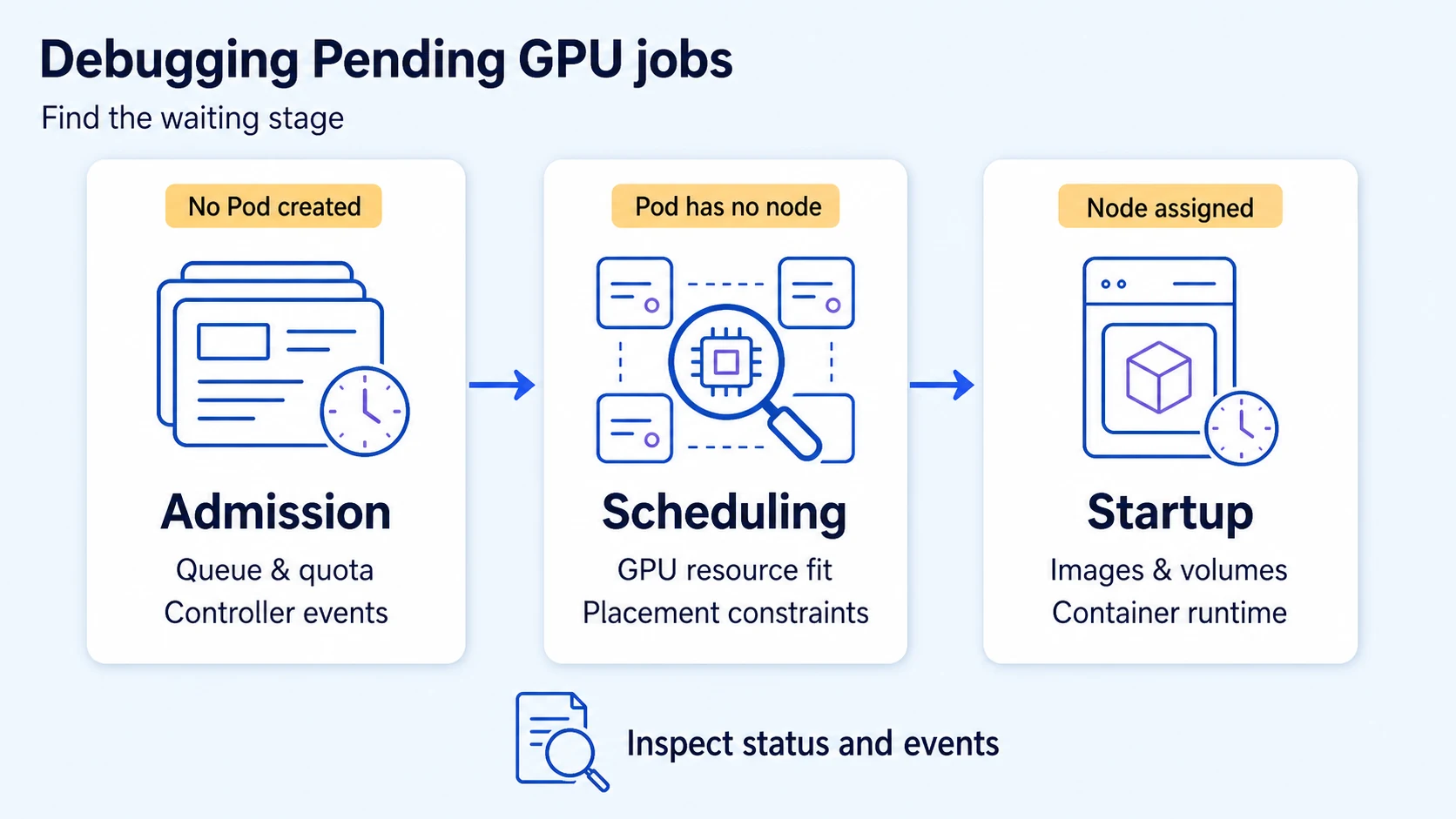
When a GPU job is stuck Pending, first establish whether Kubernetes has created a Pod and assigned it to a node. Those two facts separate queue admission, scheduling, and container startup problems. Adding nodes or reducing GPU requests before identifying the stage can leave the original problem untouched.
This guide focuses on workloads that request GPU extended resources such as nvidia.com/gpu through a device plugin. If your cluster uses Dynamic Resource Allocation, inspect its ResourceClaims and allocation events as well; the resource path differs.
Find the stage that is waiting
| Observation | Investigate first |
|---|---|
| Run exists, but no workload or Pod was created | Queue admission, approval, agent connectivity, controller errors |
| Job exists, but no Pod appears | Job events, admission policies, namespace quota |
| Pod exists with no assigned node | Scheduler events, resource fit, placement constraints, scheduling gates |
| Pod has a node but containers have not started | Image pulling, volume mounts, init containers, runtime setup |
| Container starts and then exits | Application logs, CUDA/runtime compatibility, memory, exit status |
The Kubernetes Pod debugging guide uses Pod status and events to narrow the cause. Preserve the first useful event messages before repeatedly resubmitting the workload.
Read the Pod and its events
Set these values to an existing namespace and Pod. The commands are read-only and require permission to inspect those resources:
NS=ml-workloads
POD=replace-with-your-pod-name
kubectl get pod "$POD" -n "$NS" -o wide
kubectl describe pod "$POD" -n "$NS"
kubectl get events -n "$NS" \
  --field-selector "involvedObject.kind=Pod,involvedObject.name=$POD" \
  --sort-by=.metadata.creationTimestamp
Read the full scheduler message. Several constraints can fail at once: some nodes lack GPUs, others have an untolerated taint, and another has insufficient memory. Fixing only the first phrase may still leave no eligible node.
If there is no Pod, inspect the owning Job or controller and namespace events instead. A quota rejection can prevent Pod creation entirely, so searching only for Pending Pods misses that failure.
Compare the request with advertised resources
For the device-plugin path, Kubernetes schedules against advertised resource names and counts. A GPU visible to the host is not sufficient if the plugin has not exposed it to Kubernetes. The GPU scheduling documentation explains the device plugin requirement and extended-resource requests.
kubectl get nodes -o custom-columns='NAME:.metadata.name,GPU_CAPACITY:.status.capacity.nvidia\.com/gpu,GPU_ALLOCATABLE:.status.allocatable.nvidia\.com/gpu'Compare those values with the actual Pod specification, after presets and admission changes have been applied. This container resource fragment requests one GPU plus CPU and memory:
resources:
  requests:
    cpu: "2"
    memory: 8Gi
  limits:
    nvidia.com/gpu: "1"
Kubernetes uses the GPU limit as the request when the GPU request is omitted. If you specify both, they must match. Standard extended-resource counts are integers; 0.5 does not request half a GPU. Shared resources or MIG profiles must be configured and requested by their advertised names.
Allocatable is the node's schedulable total, not its currently free capacity. Inspect allocated requests on candidate nodes. A device can show low utilization while already being assigned to another Pod. See GPU utilization metrics for the distinction between allocation and activity.
Check whether any node satisfies the whole request
GPU count is only one placement condition. Inspect CPU and memory requests, node selectors, affinity, taints and tolerations, volume topology, and any group scheduling requirements. Kubernetes resource management explains why scheduling uses resource requests rather than current application usage.
Four nodes with one free GPU each cannot satisfy a single Pod requesting four GPUs. A distributed job might use four one-GPU workers instead, but that requires a distributed application and compatible scheduling configuration. It is not a transparent change to the resource count.
For gang-scheduled training, inspect the group's admission status as well as individual Pods. See gang scheduling for why partial capacity can leave the whole workload waiting.
Follow storage and startup errors on assigned Pods
Once a node is assigned, distinguish image pull failures, unbound or unmountable storage, failing initializers, and container runtime errors. Inspect the named container or init container rather than assuming the GPU is the blocker.
A storage class's binding behavior and available zones can constrain placement. An image may require registry credentials that the workload does not have. A GPU runtime failure after placement needs node/plugin and container diagnostics; increasing queue priority will not resolve it.
Decide whether more capacity will help
Before requesting more nodes, confirm that the eligible node pool can provide the requested GPU resource, labels, taints, storage zone, and per-Pod capacity. Check autoscaler events, pool limits, and cloud capacity through your cluster's operational tooling.
For Polyaxon runs, inspect the selected queue and scheduling configuration before the Kubernetes layer. Preserve the run ID, rendered resource requirements, relevant events, and candidate node details in a troubleshooting record.
Continue with MIG versus time-slicing if sharing is the intended solution, or return to the GPU orchestration path.